

How to create your listing:
Best practices and guidance
What makes a great listing?
A great listing helps Spektrix clients and prospects determine if you are the right fit.
This is achieved by including:
- Concisely describing the outcomes you help organizations achieve.
- Outlining the products and services you provide, including use cases, pain points you solve, their benefits, and what differentiates you.
- Resources such as short videos, case studies, and fact sheets that demonstrate the benefits of working with you.
Creating an account
We recommend partners register with an existing group email address (e.g. sales@company.com) or a new generic email address (e.g. partnerships@company.com).
This ensures that multiple team members can manage and update the listing without relying on a personal email address.
How to claim your listing
- Register and sign in to the Directory
- Go to your listing page
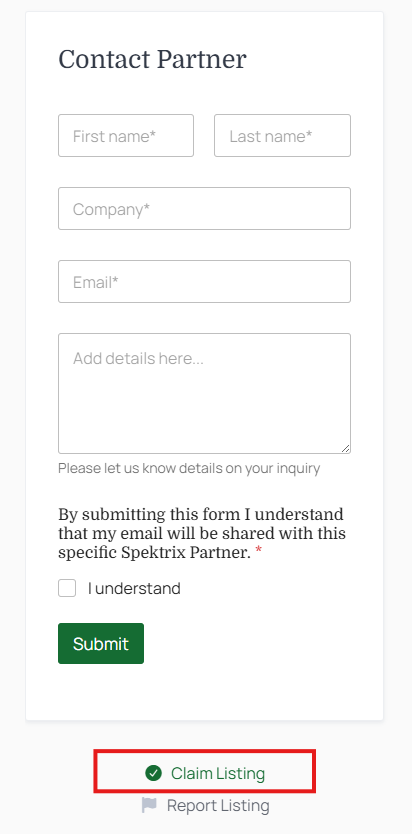
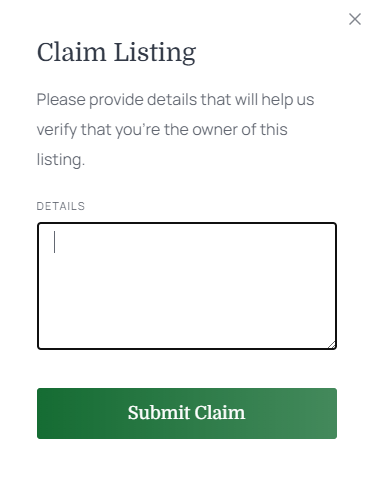
- On the left hand side of the page, underneath “Contact Partner”, click the “Claim listing” link
- In the Textbox please enter your Name, Company, and Email address
How to create a listing
After creating an account and signing in, look for the “Add Listing” button on the top right of the page.

How to edit your listing
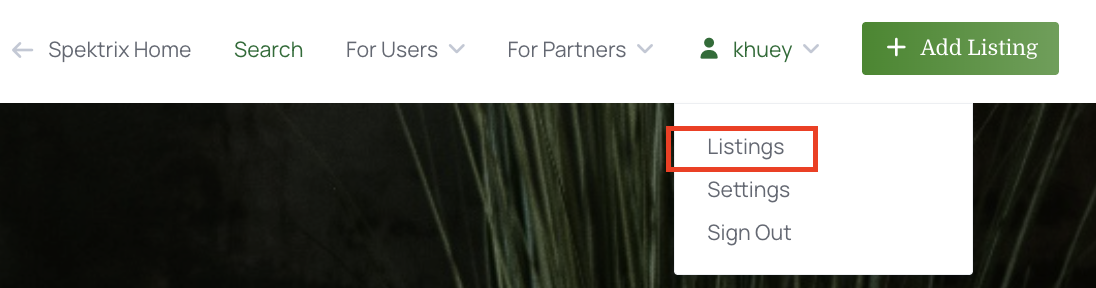
Once your listing has been claimed and the claim approved by Spektrix, you can click on “listings” under your username in the top right:
Click on the title of your listing to go to the edit page:
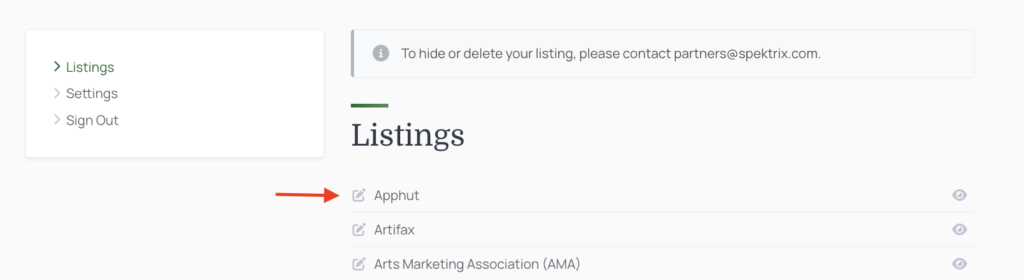
Once you have completed editing and clicked submit, your new listing will be submitted for review.
You will receive an email once the edit has been approved by the Spektrix Ecosystem team.
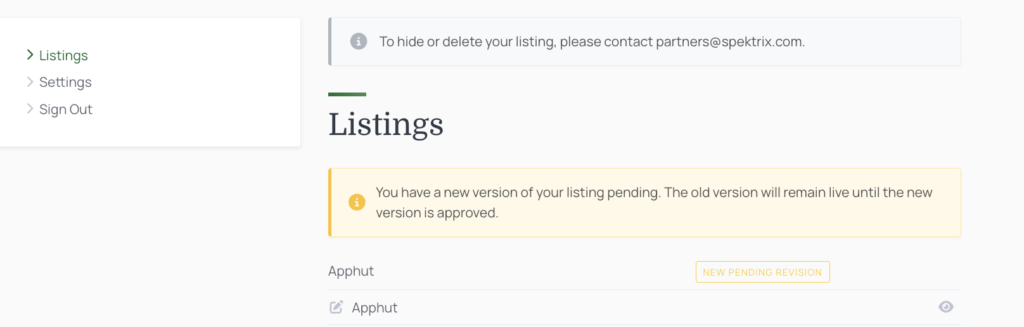
Please note: that once your edit has been submitted, you will not be able to edit your listing until it is approved or closed by Spektrix. If you have any issues during this process, please email partners@spektrix.com
Enhancing your listing with Font-Awesome icons
You can add simple icons, bullets, numbered lists, and simple formatting in your Description field to make your listing easier to read.
You can also use Font Awesome which contains a massive library of free icons including branded icons.
The Spektrix Partner Directory uses a simplified Font Awesome shortcode format. Use the Font Awesome website to find icon names and prefixes, then paste them into the examples below.
Finding icons on Font Awesome
- Go to the Font Awesome icon library
- Make sure you are using Version 5 icons only
- Search for the icon you want
- Copy the icon name into the formats below
Simple icons
For most icons, use:
[icon name="star"]Just replace “star” with the name of the icon you want.
Examples:
[icon name="check"]
[icon name="ticket-alt"]
[icon name="chart-line"]
[icon name="envelope"]
Brand or special icons
Some icons (like Apple Pay, Facebook, Instagram, etc.) require an extra code called a “prefix”.
Use this format:
[icon name="apple-pay" prefix="fab"]Replace:
- “apple-pay” with your chosen icon name
- “fab” with the prefix shown on the Font Awesome page
Example:
If Font Awesome v5 shows:
<i class="fab fa-apple-pay"></i>Then:
- icon name = apple-pay
- prefix = fab
- Becomes:
[icon name="apple-pay" prefix="fab"]Adding colors
You can also add colors to icons.
Examples:
[icon name="star" style="color: red;"]
[icon name="envelope" style="color: #ff0000;"]
[icon name="apple-pay" prefix="fab" style="color: #7AC143;"]
Best practices
- Keep icons simple and easy to read
- Avoid using too many colors
- Use icons to highlight key information, not every line
Selecting your categories
Categories are critical to how users find partners.
Since your internal category definitions may differ from ours and our clients’, please review the descriptions below before making your selections.
- Accessibility:
- Tools or services that improve access for disabled users or make events more accessible
- Audience Engagement:
- Tools or services focused on engaging audiences before, during, or after attendance
- Marketing & Advertising:
- Agencies or tools focused on paid media, advertising, campaign execution, or audience acquisition (e.g. social ads, search ads, display, outdoor, media buying)
- Includes partners who primarily help drive traffic or awareness rather than manage customer websites
- Class and Course Registration:
- Tools specifically for managing classes, courses, or similar registrations
- Consultancy:
- Strategic advisory or consulting services, not just software
- Dashboard:
- Tools for viewing and tracking key business data
- Digital Membership cards:
- Tools for digital membership cards or related member pass functionality
- Dynamic Pricing:
- Adjusting ticket prices based on demand and timing
- Ethical Resale Platform:
- Tools for controlled or ethical ticket resale
- Event Listings:
- Platforms or services that list and promote events
- Fundraising / Development:
- Tools or services for fundraising, donor development, or supporter growth
- Kiosk:
- Self-service physical kiosks used in venue settings
- P.O.S / E.P.O.S / POS / EPOS:
- In-venue systems for selling concessions and merchandise
- Ticket Agents / Distribution channels:
- Third-party channels or agents that help distribute or sell tickets
- Ticket Insurance / Protection:
- Services that offer ticket protection, refund coverage, or insurance
- Venue Operations:
- Tools or services that support venue management or operations
- Volunteer Management:
- Platforms that help coordinate volunteers, including scheduling and training
- Websites:
- Website design, development, CMS, or website-related services
- Wifi sign up:
- Tools that capture visitor details through Wi-Fi access or sign-up flows